
Tellescope is now integrated with Documo!
What do you need in order to integrate?
- You'd need to purchase a plan with Documo and obtain an API key
Setting up the Documo Integration:
- From your Documo account go to API Keys
- Click Create, to generate an API Key
- Log into Tellescope and go to the integrations tab
- Click on the Documo Integration
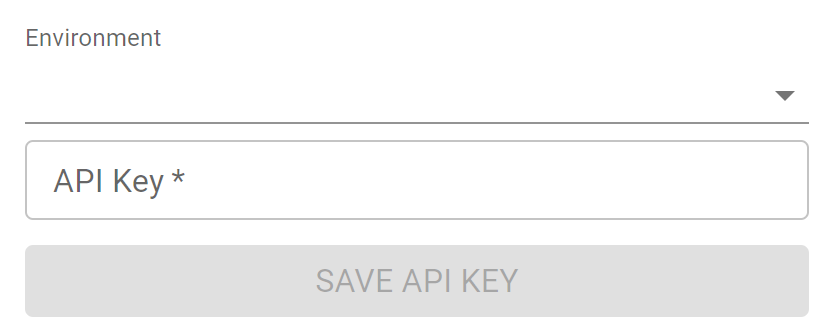
- Select the environment you'd like to leverage (most often this will be "production") and input the API key.
- Check, within Documo, that only a single webhook has been created Documo. If more than one is created, delete any additional webhooks.
And you're done! You should now see the incoming fax icon at the top right corner of your screen.
Receiving a Fax
- When you receive a new fax you will receive a bell notification in the top righthand corner of your Tellescope account
- Clicking View Fax will show the fax content. After clicking into the fax you will be presented with three options in the top navigation for how you can save the fax
- Save to Profile: Allows you to search for patients that exist and Tellescope and save the file to their profile as a file
- Plus Sign: Allows you to create a new contact for a patient that does not already exist in Tellescope. After inputting the patient's information and clicking save, a new patient profile will be created the file will be stored as part of their profile.
- Save without Profile: Saves the fax as a Protected File in Tellescope and does not associate the fax with any patient profile.
- The Protected Files Page is where you can see received files and send files
- Person Icon: Shows which patient the file / fax is associated with. Files / faxes that do not have a person icon next to them, indicates that the file / fax is not associated with a patient contact.
- Download Icon: Allows you to download the file / fax
- Trashcan Icon: Allows you to delete the file / fax
- Clicking the Person Icon takes you to the patient's profile
- On the patient's profile the file / fax can be viewed on the Files Tab
Sending a Fax
- On the Files Page under the Protected tab click the fax icon next to the file that you would like to fax
- While on a patient's profile, click the the Files Tab
- Click the fax icon next to the file that you would like to fax
- After clicking the fax icon, a modal will pop up
- Enter the fax destination number
- Click Send Fax to send the fax
- In your Documo account, you will see a record of the outbound fax when clicking History and then Outbound Fax.
Troubleshooting
If you're not seeing the fax in Tellescope after a while, you may want to reach out to Documo support to ensure your subscription is active and enabled for API use.
Comments
0 comments
Please sign in to leave a comment.