
Order Confirmation
Using the Order Status Equals Trigger, we're able to activate a trigger once we receive an order confirmation webhook.
To set up the trigger:
- Go to Journeys
- Click Triggers
- Event: Select "Order Status Equal"
- Source: Select "OpenLoop"
- Status: Select "confirmed"
To test the trigger:
- Have Healthie connected to Tellescope
- Create a Tellescope Patient that also exists in Healthie (Tellescope Patient should have a Healthie ID on their Tellescope profile)
- Run the command below in the terminal
curl --header "Content-Type: application/json" \
--request POST \
--data '{"patientID":"HEALTHIEID","pharmacy":"PHARMACY NAME","medication_instructions":"html with google drive link here","shipping_address":"123 Example Ln, Des Moines, IA 50309","orderNumber":"123456","type":"order_confirmation","medicationSKU":"abc-test-sku","sku_med":"ABC Med"}' \
"https://api.tellescope.com/v1/webhooks/openloop/YOURTELLESCOPEBUSINESSID"
- NOTE: Each order that you test must have a unique orderNumber or else it will not work (unique on a per organization basis, not per patient)
- NOTE: Testing with a staging Tellescope instance should utilize "staging-api" in the webhook url. Testing with a production Tellescope instance should utilize just "api".
- NOTE: Your business ID is found under Settings --> Organization
Order Shipment
Using the Order Status Equals Trigger, we're able to activate a trigger once we receive an order shipped webhook.
To set up the trigger:
- Go to Journeys
- Click Triggers
- Event: Select "Order Status Equal"
- Source: Select "OpenLoop"
- Status: Select "shipped"
To test the trigger:
- Have Healthie connected to Tellescope
- Create a Tellescope Patient that also exists in Healthie (Tellescope Patient should have a Healthie ID on their Tellescope profile)
- Run the command below in the terminal
curl --header "Content-Type: application/json" \
--request POST \
--data '{"patientID":"HEALTHIEID","pharmacy":"PHARMACY NAME","shipped_date":"2024-07-09","track_number":"1234567890","status":"shipped","type":"order_shipped","order_date":"2024-07-09","orderNumber":"123456","medicationSKU":"abc-test-sku","sku_med":"ABC Med"}' \
"https://api.tellescope.com/v1/webhooks/openloop/YOURTELLESCOPEBUSINESSID"
- NOTE: Each order that you test must have a unique orderNumber or else it will not work (unique on a per organization basis, not per patient)
- NOTE: Testing with a staging Tellescope instance should utilize "staging-api" in the webhook url. Testing with a production Tellescope instance should utilize just "api".
- NOTE: Your business ID is found under Settings --> Organization
Including OpenLoop Shipment Tracking Number in Messages:
{{order.tracking}} for templating the tracking number of an order into messages
- Create a message template that includes the template string above
- Create a Journey where the first step is to send a text or email using this template
- Ensure this Journey is triggered by an Order Shipment, in order for it to be aware of the appropriate tracking number
Sending OpenLoop Video URLs in a Message Template/Reminder:
{{calendar_event.externalVideoURL}} for templating externalVideoURL into calendar event reminder messages
- Create a message template that includes the template string above
- Go to the calendar page
- Edit an event template (NOTE: To sync correctly with Healthie the Tellescope event template name must be typed exactly as it's written in Healthie. Then you should select Match by Healthie Title (Healthie --> Tellescope) in the Tellescope Event Template.
- Add reminder(s) that includes that include the message template(s) that contain the template string
- Click Save
- NOTE: For this to work, appointments scheduled through Healthie must have the external URL option enabled and use an external video link
Displaying OpenLoop Orders in the Portal:
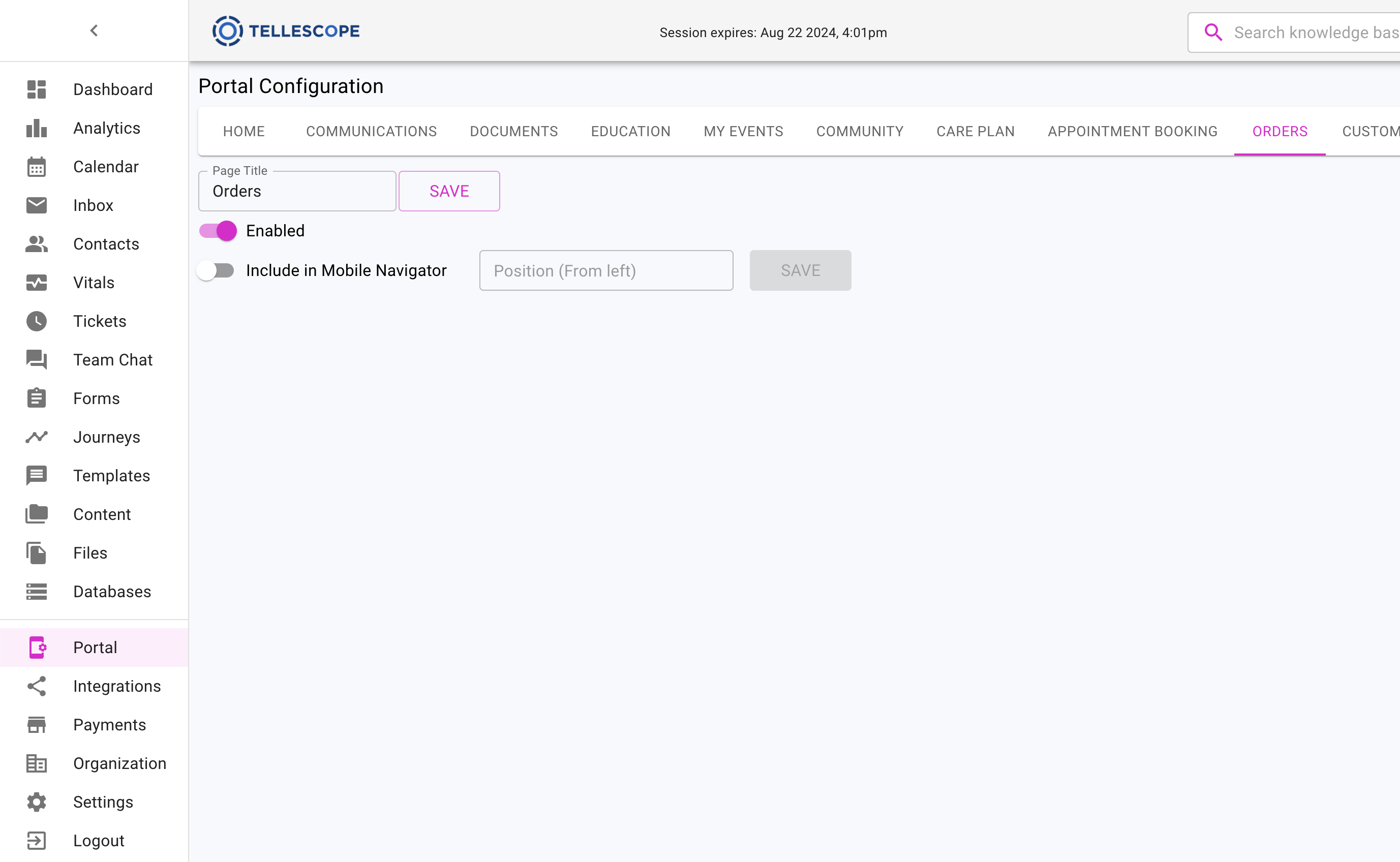
- While logged into Tellescope click the Portal Tab
- Click Add Pages
- Click Orders
- Toggle Orders on
- After we receive a Webhook from OLH that an Order has been Shipper, in the Patient Portal on the Orders Tab we'll display the instructions and tracking information for that order
Order Status Webhook Field Mapping
The "Order Status" webhooks sent from OpenLoop are used to create/update an "Enduser Order" in Tellescope. The initial "confirmed" webhook will create the Order on the patient's profile, and the "shipped" webhook will update the order. The table below outlines how the fields included in the webhook are mapped to the EnduserOrders model in Tellescope.
| OpenLoop Field | Tellescope Field | Description |
| orderNumber | externalId |
Unique order identifier from OpenLoop |
| patientID | enduserId |
Links order to patient (looked up internally) |
|
sku_med or pharmacy |
title | Order name (uses sku_med if available, otherwise "OpenLoop: {pharmacy}") |
| shipping_address | description | Delivery address |
|
medication_instructions |
instructions |
How to take the medication |
| weeksOrdered | frequency | Refill frequency (e.g., "12 weeks") |
| fill | fill | Fill number |
| medicationSKU | sku | Product SKU (stored in lowercase) |
| type | status | Set to "confirmed" or "shipped" |
| source |
Automatically set to "OpenLoop" |
Comments
0 comments
Please sign in to leave a comment.