
Booking Pages are used to allow patients to self-schedule events
- Click Add Page to create a new booking page
1. Create Patient Booking Note
- When enabled and the specified patient booking an event with the corresponding booking link, the note will be visible on the Calendar
2. Copy Booking Template
- Lets you duplicate an existing booking page
3. Generate a Booking Link (more detailed information below)
- Lets you generate a booking page for one, many users, or business-wide users availability
4. Edit Booking Page (more detailed information below)
- Allows you to edit an existing booking page
5. Delete Booking Page
- Perminately deletes a booking page
Generating a Booking Link
- By default, a booking link will show a combined availability for all users who are available for the event. When using this method, if there are multiple users available for the same timeslot, at random, one of them will be scheduled for the event
- If you select one user's name and then generate the booking link, the booking link generated will be unique for that user
- If you select multiple user's names and then generate the booking link, the booking link generated will show timeslots that are at the intersection of both user's availability, and events scheduled with that link will schedule both users
- Checking the "Allow user Selection" box, will allow a patient to view and select multiple providers in the UI.
- Additionally, it will allow you to input Tags (that are set for Users on the Settings-->Organization page) which will only list providers for self-selection that have those tags
Show Availability for Range
- Inputting a time range for this box only lets a patient book between the specified timeframe
Generate 1-time booking page
- Using this creates a link that restricts the patient to only being allowed to book one event
Including all users as attendees on each booking
- If multiple members of your team are needed for an event, you can generate a booking link that provides patients with a link to book with both team members at once
- If you input multiple team members names when generating a booking link and select "include all users as attendees on each booking" the availabilities shown to patients will be the intersection of both team members availability.
User Selection and User Tags (for Booking)
- If you select "allow user selection" when generating a booking link it will allow a patient to see a list of providers and their bio that they can choose to schedule with rather than selecting the first available time slot
- If you only want to show certain providers that either have a certain skill, are in-network with certain insurers, etc. You can specify User Tag(s) which will only show providers who have those tag(s) set
- Adding multiple line items for tags will require a user to select multiple providers when booking
How user selection looks to the patient. **Bio is set on the Settings --> Profile page.
User Tags are set on the Settings --> Organization page
Single Tag Booking Example
Multiple Tag Booking Example
Editing a Booking Page:
- Title: The name of the Booking Page
- Hiden from Portal (Optional): If left unselected, patients using the portal will be able to schedule follow-up events in the portal
- Events: The Calendar Event template(s) that should be used for the booking page
- Locations (Optional): If you're offering appointments in multiple locations, this prompts the patient to select which location they'd like to book for before being shown the booking page
- Terms (Optional): Allows you to add a check box and a link that a patient must opt into before booking the event
Booking Page Restrictions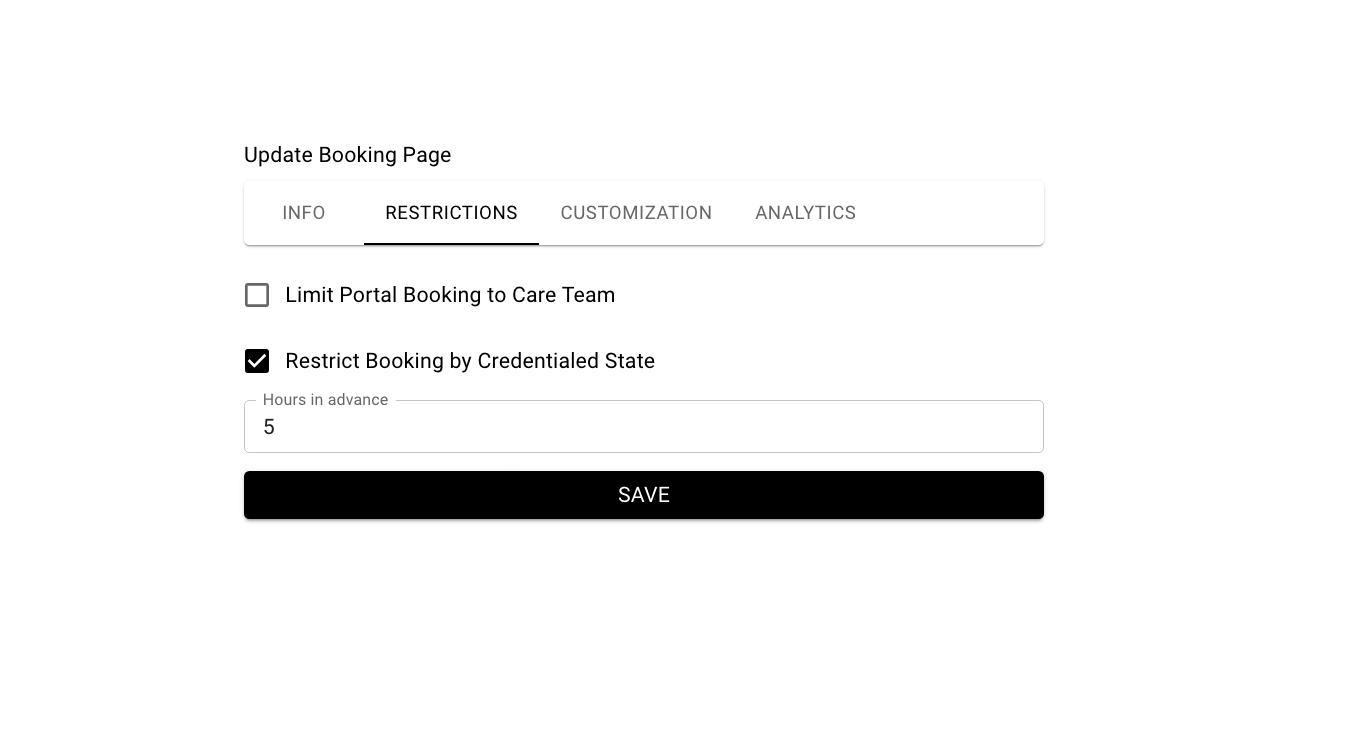
- Limit Portal Booking to Care Team: Only allows patients to book follow-up appointments (when logged into the portal) with users who are assigned to their care team
- Restrict by Credentialed State (screenshot below): When enabled, patients will be first asked to input their state which checks against the Credentialed State that providers have listed in the product. This then will only display provider(s) availability for providers who are credentialed in the patient's state.
- Hours in Advance: By default, events can be scheduled whenever. If a number is input for Hours in Advance then events can only be scheduled only if is greater than that many hours in advance.
Booking Page Customization:
- Allows you to customize different elements of the booking page
Booking Page Analytics: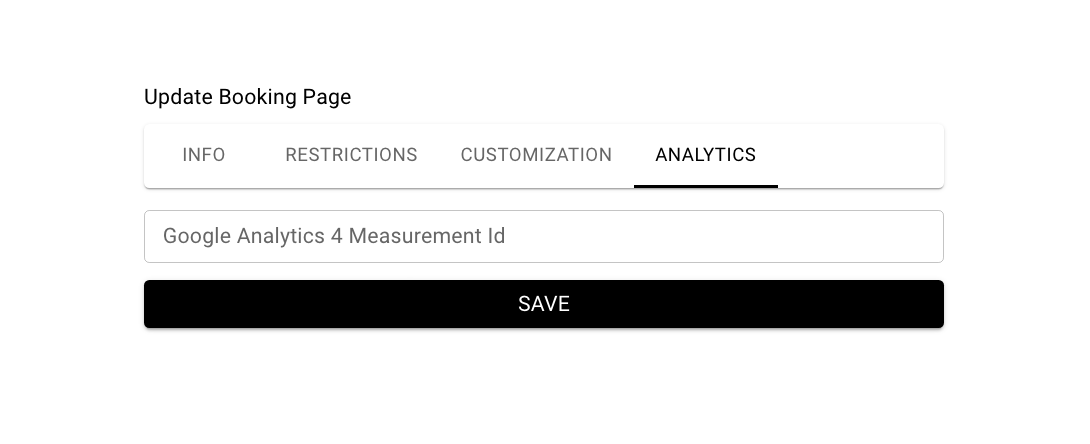
- Allows you to record and track events for booking metrics
Comments
0 comments
Article is closed for comments.