
Creating a Database 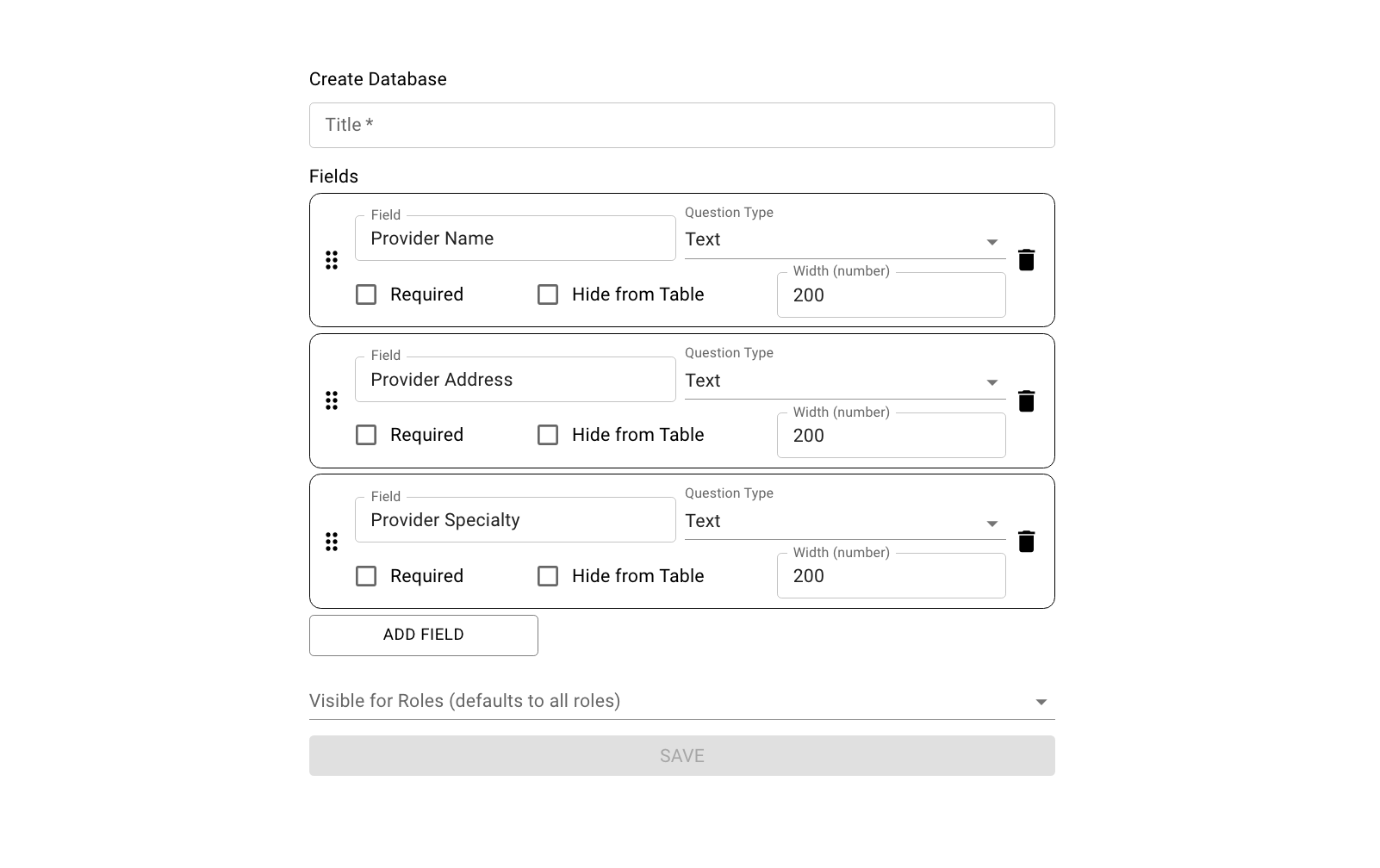
Databases are commonly used to store a list of data that you would typically be storing externally in a spreadsheet (such as a Provider Referral List). Databases can be used for Form Questions to auto-populate certain values.
- On the first page click the Plus Sign on the top right-hand corner
- Name the Database
- Click Add Field this allows you to select which columns should be in the database
- The Data Types for database entries are
- Text: Free text
- Text Long: Long free text
- Test List: Separated list of values
- Number: Numerical value
- Address: Address
- Multiple Select: Select from a structured list
- Email: Accepts email values
- Phone: Accepts North American phone numbers
- Required: The value must be entered for new entries
- Hide from Table: Creating a new entry will ask for this, but it won't be visible on the table itself
- Visible for Roles: Specify if only certain roles should be allowed to view the database
- Click Save
Viewing a Provider Database
- To manually add data to a new column, click the Plus Icon on the top right hand corner
- To add new columns to an existing database click the Pencil Icon on the top left hand corner
Updating existing Database Records and importing via CSV:
Using a CSV you can import new records or update existing records. If you're updating existing records it is important that you do not delete the ID column after downloading a list of existing records.
To Download and Update Existing Records:
- Click the checkbox next to the rows you would like to download
- Click the Filled in Cloud Icon
- Edit the CSV without removing the ID column
- After you're done, click the Cloud Icon and re-upload the CSV
To download the CSV Format for New Records:
- Click the Cloud Icon
- Click Download an Example
Comments
0 comments
Article is closed for comments.